Quick Summary
- An audit combines automated scans, manual testing with a keyboard and a screen reader, and a review of content and documents.
- Review in this order: structure and navigation, forms and checkout, media, documents, then third-party tools.
- Rank findings with a simple formula: user impact, times how many pages, times how hard the fix is.
- An audit organizes the work and the evidence. It does not replace advice from your counsel.
The first audit I ran for a small business site produced a 140-line scanner report. The owner printed it and asked where to start. The answer was a handful of items, because most of the lines were the same missing label repeated in a template. An audit is the work of turning a long list into a short, ranked one.
This article explains what to review, why each area is on the list and how I rank the results. If you want the work done with you, my ADA compliance consulting page shows how a project runs. The article is a compliance aid. Whether your organization meets legal requirements is a question for your counsel.
What an Audit Is, and Where It Stops
An ADA compliance audit tests your digital properties against an accessibility standard. For websites and apps, that standard is usually the Web Content Accessibility Guidelines (WCAG), published by the W3C. Your counsel, a contract or an agency may name a version and level, so settle that before you start.
The audit stops at findings. It does not decide what the law requires of you, and it does not fix the code. Its job is to produce an accurate, ranked list that your developers and editors can use. For the earlier step of judging how ready you are, see my guide to the ADA compliance assessment.
What to Review, and Why
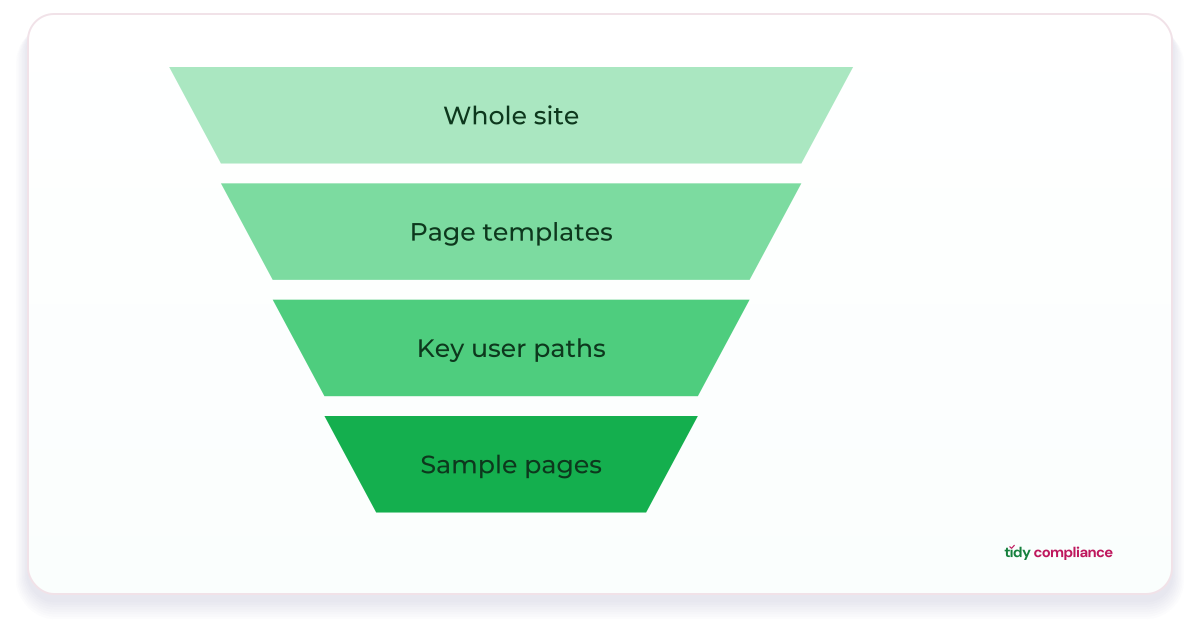
I review in a fixed order, because early areas affect everything after them. The table shows the order and the reason.
| Area | What to check | Why it comes here |
|---|---|---|
| 1. Structure and navigation | Headings, landmarks, menus, skip links, focus order | Every other task depends on moving through the page |
| 2. Text, color and layout | Contrast, resizing, reflow, link text | Affects every page and is easy to fix in a template |
| 3. Forms and checkout | Labels, errors, instructions, time limits | Where customers complete tasks and money changes hands |
| 4. Images and media | Alt text, captions, transcripts, motion controls | Content many people cannot perceive without alternatives |
| 5. Documents | PDF structure, reading order, tags | Often forgotten and heavily used for forms and guides |
| 6. Third-party tools | Booking widgets, chat, payment, embedded video | Barriers there appear on your pages |
Structure and Navigation
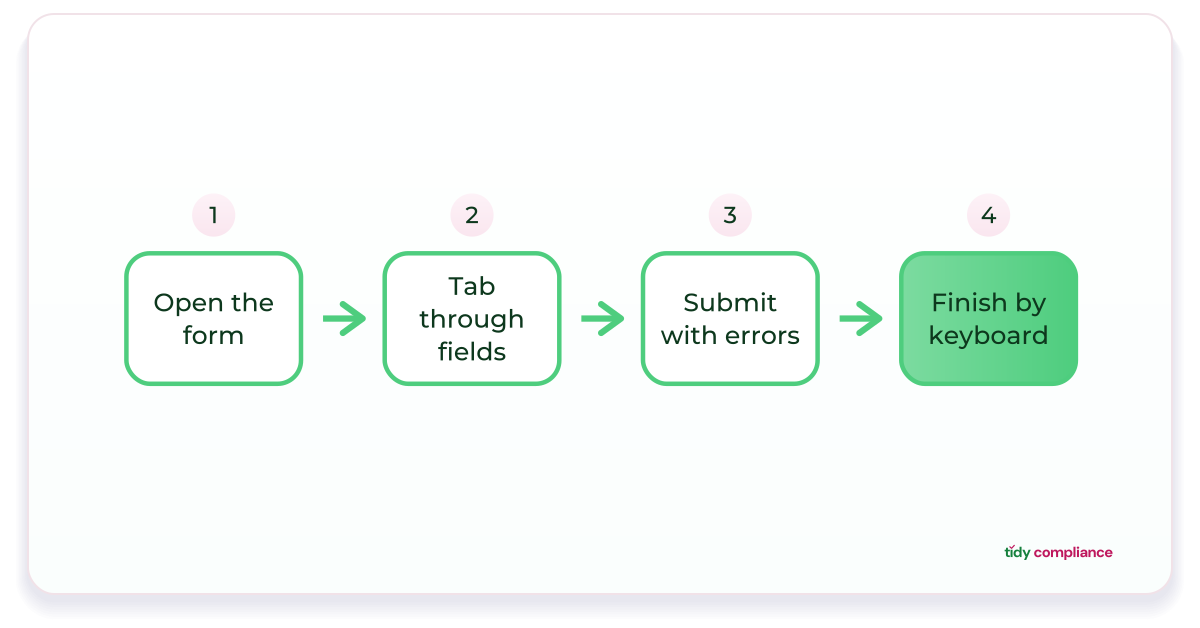
Start with the keyboard. Unplug the mouse and move through the page with the tab key. Can you see where you are? Can you reach every menu item, button and link, and leave every dialog? Keyboard traps and invisible focus are among the most frequent serious findings, and they block people who use keyboards, switches and many assistive tools.
Then check structure. A screen reader user often jumps through headings and landmarks to skim a page, much like a sighted user scans visually. A page with a heading hierarchy that follows the content, and clear landmarks for navigation and main content, is far easier to use. Look for skipped levels, headings chosen for their size and pages with no main region.
Text, Color and Layout
Contrast problems sit in templates, which makes them cheap to fix once you find them. Check body text, buttons, form borders, placeholder text and text over images. Test zoom to 200 percent and a narrow window to see whether content reflows without horizontal scrolling and without losing information.
Link text deserves a check too. Links labeled only "click here" or "read more" mean nothing out of context, and screen reader users often navigate by a list of links. Descriptive link text helps everyone.
Forms and Checkout
Forms decide whether a customer can book, buy or contact you. Check that every field has a visible label connected to it in the code, that required fields are marked in text and not only in color and that error messages say what went wrong and how to fix it. Test the whole path with a screen reader and a keyboard, including payment and confirmation steps.
Look for time limits, such as a session that expires while someone fills out a long form, and for CAPTCHA challenges that block people who cannot solve visual puzzles. If you use one, offer an alternative way to complete the task.
Images, Video and Audio
Images that carry information need a text alternative that says what the image conveys, and decorative images should be marked so assistive tools skip them. Charts need a text summary or a data table. Video needs captions, and audio-only content needs a transcript. Auto-playing motion should be stoppable.
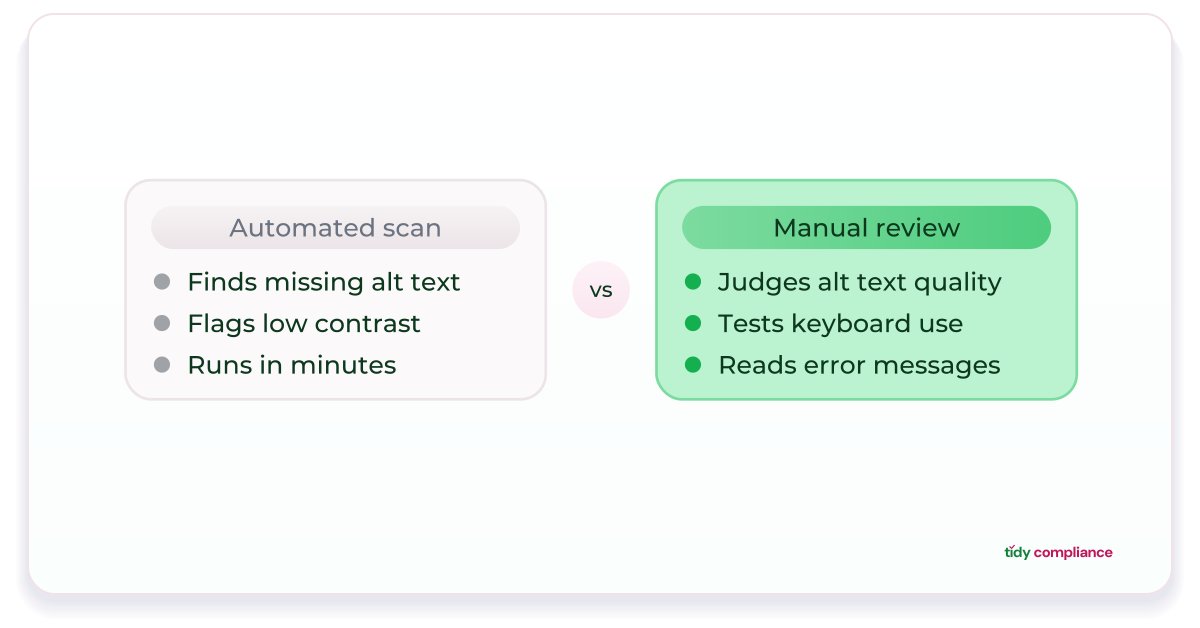
Alt text quality is where scanners fall short. A scanner can tell that alt text exists. It cannot tell whether "image123" describes anything. Review a sample by hand.
Documents and Downloads
PDFs are common in service businesses: price lists, intake forms, guides. Check that they have real text, a logical reading order, tagged headings and labeled form fields. An image of a scanned page is unreadable to a screen reader. Where possible, publish the content as a web page and keep the PDF as an extra.
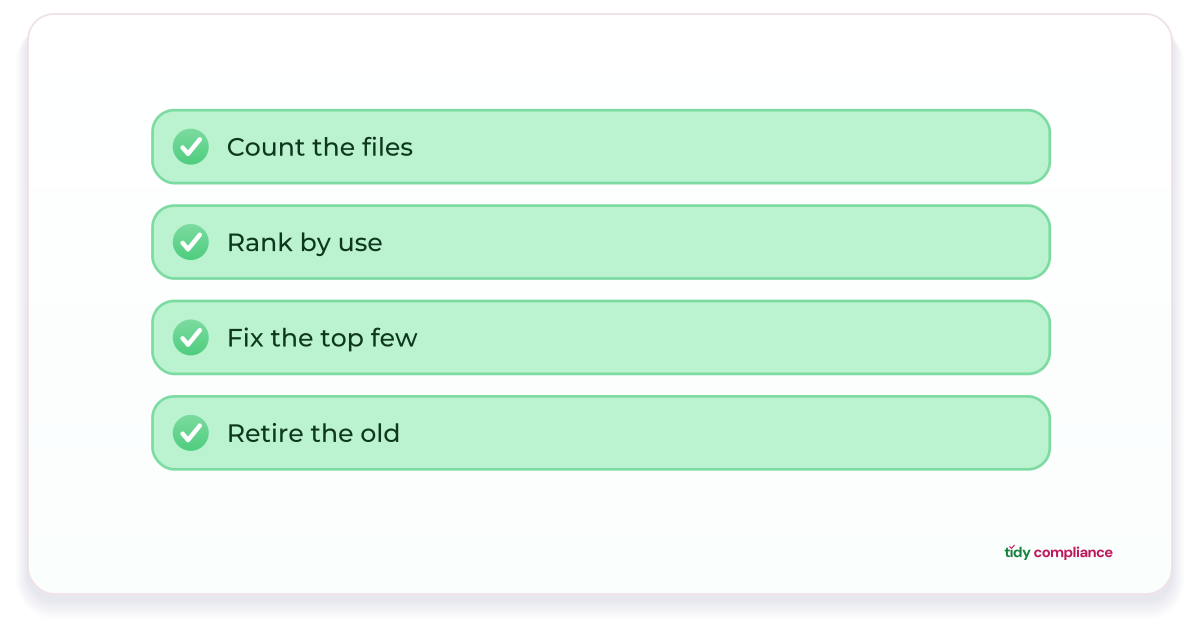
Count the documents first. Sites often carry hundreds of old files. Decide which ones to fix, which to retire and which to replace, and record that decision.
Third-Party Tools
Booking widgets, chat windows, payment forms and embedded video players come from other companies, and their barriers appear on your pages. Test each one on its own and ask the vendor for an accessibility statement or conformance report. If a vendor cannot offer one, record the risk and plan an alternative.
Add contract language to vendor renewals. A line that asks the vendor to maintain accessibility of the product gives you a basis for requests later.
Which Tools Support the Audit
Automated tools speed up the first pass and make the re-tests cheaper. Free browser tools can check single pages, and scheduled scanners can monitor many. I compare them in my ranking of the best ADA compliance tools, with the prices and ratings I could verify. Whatever you choose, treat the output as a starting list that you confirm by hand.
The Formula I Use to Rank Findings
A finding list needs an order. I score each one with a simple formula:
Priority = Impact × Reach × Ease
Impact runs from 1 to 3: 3 means the issue blocks a task completely, 2 means it makes the task hard and 1 means it is an annoyance. Reach runs from 1 to 3: 3 means the issue sits in a shared template or on key pages, 2 on a group of pages and 1 on a single page. Ease also runs from 1 to 3, where 3 is a quick fix and 1 is a major rebuild. Multiply the three numbers. The highest scores come first.
A worked example: a missing form label in the contact form template blocks screen reader users on every page that uses it. Impact 3, reach 3, ease 3 gives 27, so it goes to the top of the list. A color contrast issue on one old blog page has impact 1, reach 1, ease 3 and scores 3, so it waits.
| Finding | Impact | Reach | Ease | Score |
|---|---|---|---|---|
| Contact form fields without labels | 3 | 3 | 3 | 27 |
| Menu not reachable by keyboard | 3 | 3 | 2 | 18 |
| Videos without captions | 2 | 2 | 2 | 8 |
| Low contrast on one old blog page | 1 | 1 | 3 | 3 |
Re-score after each fix round. Scores shift as templates get fixed and as new pages arrive, and a short second pass keeps the list honest. Keep the old scores in the log, so you can show how the list shrank over time.
What Happens After the Audit
Turn the ranked list into tickets with an owner and a date. Developers get the element, the problem and the fix. Editors get plain-language guidance on alt text, headings and link wording. Keep a record of each fix and the date you re-tested it, because that record shows what you did.
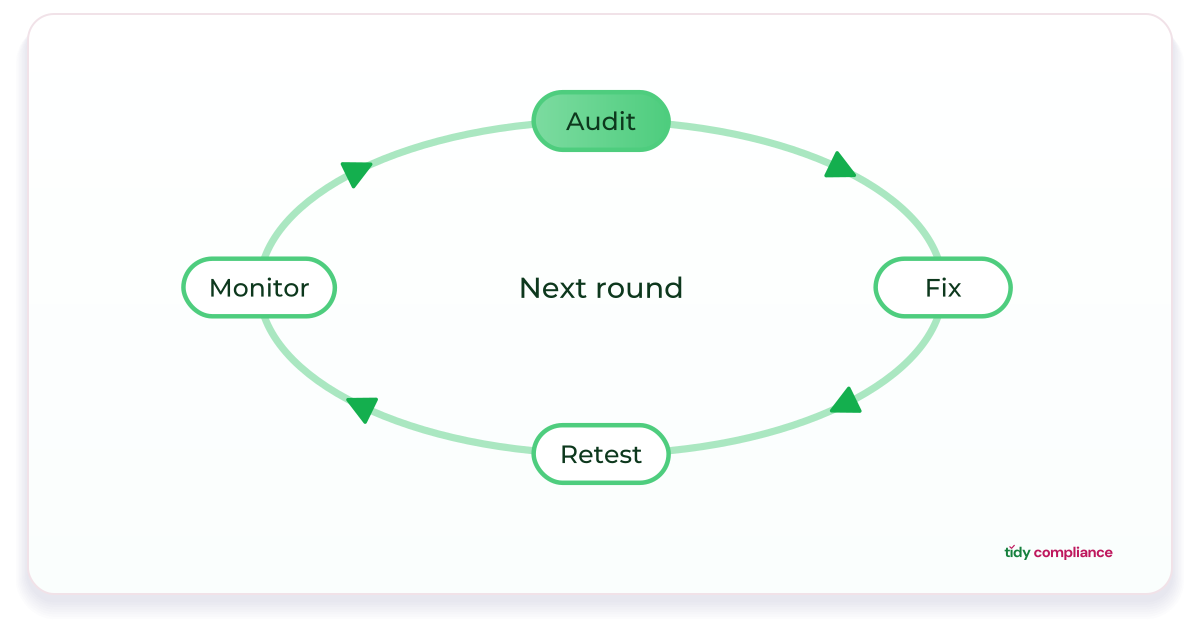
Then plan the next round. New pages and plugins bring new problems, so re-test your key pages on a schedule and after major changes. If you run a small team, my notes on ADA compliance for small business show a lighter version of this routine, and the guide to ADA compliance best practices covers habits that keep the site accessible. For budgeting the project, see my breakdown of ADA compliance cost.
Mistakes That Weaken an Audit
Three mistakes show up again and again. The first is testing the home page and nothing else, which misses the forms and account areas where customers do the real work. The second is trusting a score from a scanner as if it were a result. The third is a report with no priorities, which leaves the team to guess where to begin. Avoid them and your audit will already be better than most.
Also check the date. A sample taken before a redesign says little about the new site, so repeat the audit on changed templates after every major release.
How to Choose Who Runs Your Audit
You can run a first-pass audit in-house if someone on your team knows WCAG and uses assistive technology. For anything that may be shared with a customer, a regulator or your counsel, an independent reviewer is stronger. Ask for a sample report, the testing methods and the browsers and screen readers used. A reviewer who cannot name them has probably run only a scanner.
- The scope lists templates and tasks, not only page counts.
- The report includes screenshots, elements and WCAG criteria.
- Findings carry a priority and a suggested fix.
- A re-test of fixes is included or priced separately.
Questions About ADA Compliance Audits
What Is an ADA Compliance Audit?
It is a structured review of your website, apps, documents and related processes against an accessibility standard, usually WCAG, to find barriers for people with disabilities. The result is a ranked list of findings with evidence and recommended fixes.
Is an Automated Scan the Same as an Audit?
No. Automated tools find only part of the issues. An audit adds manual testing with a keyboard and a screen reader, a review of content and an assessment of how real tasks work. A scan is a useful input to an audit, and it is no replacement.
How Long Does an Audit Take?
A focused audit of a small site with a handful of templates can take a few weeks. Larger sites, apps and many documents take longer. The scope decides the timeline more than the page count does.
Which Pages Should Be in Scope?
Pick a sample that covers each template and each key task: the home page, navigation, main service or product pages, forms, search, checkout and account areas, plus your most visited documents. Add any page that a complaint or a customer has pointed at.
Who Should Run the Audit?
Someone who knows WCAG and uses assistive technology in testing. That can be an internal specialist or an outside firm. Independence helps, because the person who built the page tends to miss its barriers.
What Do I Get at the End?
A report with each finding, the page and element, the WCAG criterion, the user impact, a screenshot and a suggested fix, plus a priority rating. Good reports also include a short summary for non-technical readers.
Does the Audit Give Me Legal Protection?
No audit can promise that. It shows what you found and what you are doing about it, which many organizations find useful. Questions about legal duties and claims belong with your counsel.
Sources
Disclaimer: This article is for general information only and isn’t legal, financial or tax advice. Treat figures as estimates from typical work and confirm details with your providers before you act.
Was this guide helpful?
Thanks for your feedback.
Odessa Whitfield
Odessa leads the Tidy editorial team and works with the compliance consultants to turn real client projects into practical guides on regulations, frameworks, policies and audit preparation. Before joining Tidy, she worked in compliance and risk roles, writing and maintaining policy sets for regulated organizations. Every article goes through a consultant who has done the work in practice, and she updates guides when a rule, framework or tool changes. She works remotely from the United States.